A reliable remote work travel setup comes down to three systems, purchased in this order: power that survives a full workday, a connection you control instead of one you hope for, and a display or posture setup you can hold for hours without pain. Everything else is secondary.
A minimal kit that supports a full 4 to 8 hour workday looks like this: a 100 watt-hour laptop power bank paired with a 65W GaN charger, an eSIM plus a phone hotspot backed by a travel router, and a compact laptop stand with a slim keyboard. That combination costs less than a mid-range monitor and solves the two failures that actually end a workday abroad: a dead battery and a dropped connection.
-
100Wh power bank + 65W GaN charger (covers laptop and phone from one wall socket)
-
eSIM + phone hotspot, backed by a travel router for stability
-
Laptop stand + compact keyboard for posture on long calls
-
Password manager and a privacy screen for shared workspaces
Quick math: most ultrabooks draw 45 to 65 watts under load, so a 100 watt-hour bank at the TSA-friendly power limit gives you roughly one and a half to two extra charge cycles. Nomadcareers built this guide around that same foundation-first logic: fix power and connection first, then upgrade comfort.
Key Takeaways
A dependable remote work travel setup succeeds by sequencing purchases as power, then connectivity, then display and comfort, and by testing the full kit before departure.
| Point | Details |
|---|---|
| Buy in priority order | Power bank and GaN charger first, connectivity gear second, monitor and comfort items last. |
| Size power by watt-hours | Match a 100Wh bank and 65W+ charger to your laptop’s actual draw, not its mAh rating. |
| Control your connection | Use eSIM for short stays, a local SIM for long ones, and a travel router to secure shared Wi-Fi. |
| Run a mock workday | Test battery drop, call stability, and file transfers before relying on the kit abroad. |
| Separate valuables from daily carry | Lock passports and spare devices in a room safe; carry only what the day requires. |
Building a Remote Work Travel Setup: Power, Connectivity, and Display
Buy in this order: power, then connectivity, then display. Skipping ahead to a nice monitor while running a 20,000 mAh bank with no real output rating is the most common mistake travelers make, and it shows up the first time a video call runs long on a train.
Power. Ignore mAh ratings and look at watt-hours and sustained output instead. A 13 inch laptop typically draws 45 to 65 watts while running video calls and a browser with a dozen tabs; a 100Wh power bank (the largest most airlines allow without special approval) gives you close to two extra charge cycles at that draw rate. Pair it with a compact GaN charger rated for at least 65W so one brick handles your laptop, phone, and headphones simultaneously. Airlines generally cap carry-on batteries at 100Wh without airline approval and prohibit anything over 160Wh in checked luggage, so check your specific carrier before a long-haul flight.
Connectivity. This is where most remote work travel setups fall apart. An eSIM works well for short stays and predictable itineraries. A physical local SIM is often cheaper for stays longer than two weeks, since local carriers usually undercut international eSIM pricing once you clear a week or two. A 5G mobile router earns its weight if you’re working from a group house, a co-living space, or anywhere Wi-Fi is shared and unreliable. A travel router secures and centralizes whatever connection you have. It will not create signal where none exists. If you’re heading somewhere genuinely remote, that job belongs to a cell booster or satellite unit, not a router. Run a VPN on top of all of it, especially on hotel and café Wi-Fi.
-
Check your eSIM data plan options before landing, not after
-
Confirm your power bank’s watt-hour rating meets airline carry-on limits
-
Test hotspot speed the moment you land, before committing to a workspace
Display and ergonomics. A portable monitor adds real weight and its own battery drain, so it’s only worth carrying if your work genuinely benefits from a second screen. Dual-monitor setups can lift productivity by roughly 20 to 40 percent for coders, writers, and analysts doing heads-down focus work. If your day is mostly calls and email, skip it and save the two pounds.
Pro Tip: Buy your GaN charger before your power bank. A single 65W or 100W charger that handles laptop, phone, and headphones from one outlet solves half your cable problem before you’ve spent a dollar on batteries.
Ergonomics, Audio, and Security for Daily Comfort
A laptop stand paired with a compact Bluetooth keyboard is the single cheapest upgrade to your posture on the road. Propping a laptop at eye level and typing on a separate keyboard cuts the neck strain that comes from hunching over a low screen for six hours in a café chair. Setup takes under a minute: unfold the stand, pair the keyboard once, and you’re done for the trip.
Audio quality matters more than most people budget for. Noise-canceling headphones are the baseline for anyone taking calls from airports, co-working spaces, or shared apartments. If you’re on video calls daily, a compact external USB microphone or a clip-on lav mic noticeably improves how you sound to clients and teammates, since built-in laptop mics pick up every espresso machine and conversation within twenty feet.
-
Storage. Keep a portable SSD for local backups of anything irreplaceable, and run continuous cloud sync in parallel so a lost or stolen laptop doesn’t cost you a project.
-
Passwords. A password manager removes the temptation to reuse credentials across the dozen networks you’ll join this month.
-
Screen privacy. A privacy screen protector is worth the ten dollars the first time you work a redeye or a crowded co-working table.
-
Physical security. A cable lock and a small Bluetooth tracker tucked into your bag add a real deterrent against opportunistic theft in cafés.
If you need to pare weight down, the professional consensus among mobile-office gear guides is to drop the external monitor and the dedicated microphone before you touch power or connectivity gear. Those two categories are comfort upgrades. Power and connection are what keep the workday from ending early.
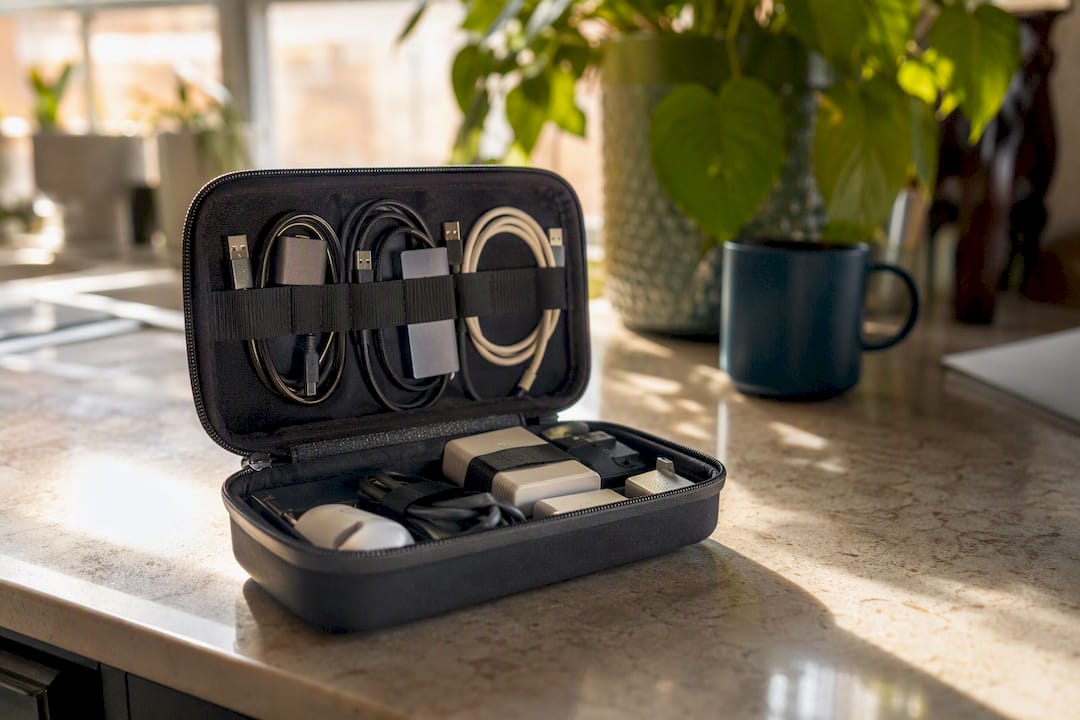
Pro Tip: *Keep every cable, dongle, and adapter in one dedicated pouch.
What Should Go in Your Travel Office Packing Checklist?
Pack by travel style, not by what looks impressive on a gear list. Here are three kits by trip type.
-
Start ultralight and add weight only when a specific pain point demands it.
-
For the balanced kit, the one item worth adding first is the 100Wh power bank; it solves the most common travel-day failure.
-
Pack laptops and power banks in carry-on luggage only, both for battery safety rules and theft risk.
-
Use a slashproof daypack for daily transit and lock passports and spare devices in a room safe rather than carrying everything at once.
How Do You Test Your Kit Before You Travel?
Run a mock workday before you rely on your kit abroad. It takes one afternoon and exposes the gaps a spec sheet won’t.
-
Charge everything to 100 percent the night before and unplug your laptop the entire test.
-
Simulate a real workblock: two hours of video calls, file uploads, and normal multitasking.
-
Track battery drop in watt-hours, not just percentage, and target under 20 percent drop per two hours under that load.
-
Test hotspot or router speed during the calls; aim for stable upload above 3 Mbps and no dropped video.
-
Tear everything down and repack it, timing yourself.
If a piece fails, that’s the signal to fix it now, not on day one of a trip. A kit is “good enough” once it clears a full mock session without a battery scare or a dropped call, and repacks in under five minutes.
Power Outlets and International Adapters: What to Actually Pack
Outlet standards vary by region, and guessing wrong means a dead laptop your first night. Most of the world runs on Type C, G, or A/B plugs at either 220 to 240V or 100 to 120V, and a universal travel adapter covers the physical shape but not always the voltage.
Modern laptop chargers and GaN bricks are almost always dual-voltage, rated for 100 to 240V input, so the adapter’s only job is reshaping the plug, not converting power. Check the fine print on your charger before assuming this, since older devices and some hair tools genuinely need a voltage converter, not just a shape adapter.
A single universal adapter with two or three USB-C ports built in removes the need to carry separate adapters for laptop, phone, and headphones. Buy one with surge protection if you’re heading anywhere with inconsistent grid power, since voltage spikes are a real risk in some regions and can damage electronics that lack built-in protection.
Outlet availability in workspaces is its own problem. Older cafés and co-working spaces sometimes have one shared power strip for a dozen tables. Scout seating near outlets before you order coffee, and treat your fully-charged power bank as the backup plan for the days the outlet situation doesn’t work out. This is exactly why the power system comes first in your buying order: it’s the one component that compensates for bad luck everywhere else.
Local SIM and Data Plan Options by Region
Your connectivity strategy should shift by region and trip length, not stay fixed across every destination. An eSIM data plan works best for short stays of one to two weeks or when you’re island-hopping across several countries and don’t want to hunt down a SIM shop in each one.
For stays longer than two or three weeks, a physical local SIM is usually the cheaper option once you factor in per-gigabyte pricing, since local carriers routinely beat international eSIM providers on cost for high data volumes. Airport kiosks and convenience stores in most tourist-heavy countries sell tourist SIMs with straightforward data packages, though buying one from a carrier store in town instead of the airport often gets you a better rate.
Regions vary meaningfully in mobile infrastructure quality. Parts of Western Europe and East Asia have dense, fast 4G and 5G coverage even outside city centers. Rural areas across parts of Latin America, Southeast Asia, and Sub-Saharan Africa can have patchy or slow coverage, which is where a travel router paired with a dual-SIM setup, or a satellite backup for genuinely remote stretches, earns its keep.
Check your eSIM data plans options before departure so you land with connectivity already active rather than scrambling in an arrivals hall. Whatever you choose, run a speed test the moment you land using a tool like Speedtest.net, since actual on-the-ground speeds can differ sharply from what a provider advertises.
Managing Time Zones for Remote Team Scheduling
Time zone drift is the quiet productivity killer of remote work travel. It’s not the jet lag, it’s the meeting that got scheduled for what you thought was 9 AM your time and turned out to be 9 AM in a time zone you left four days ago.
Set your calendar app to always display in your home team’s primary time zone alongside your local time, rather than letting it auto-switch fully to wherever you are. Most calendar tools, including Google Calendar and Outlook, support a secondary time zone display specifically for this. Double-checking meeting times against both zones before confirming anything catches the errors that cost hours of confusion.
Build a rough overlap map for your team before you travel: which hours does your schedule share with teammates in each region you’re visiting, and which countries put you fully out of sync. If you’re moving from Europe toward Southeast Asia, for example, your overlap with US-based colleagues shrinks fast, and it’s worth flagging that shift to your manager before it becomes a surprise during a sprint.
Async-first habits matter more the farther you drift from your team’s core hours. Write clear, complete updates instead of relying on live conversation, and set explicit response-time expectations so nobody’s waiting on a reply that’s coming eight hours later than they assumed.
Data Backup Strategies for Working While Traveling
A stolen or fried laptop shouldn’t cost you a client’s project, and the difference between an inconvenience and a disaster usually comes down to backup habits set up before you needed them.
Run two backup layers simultaneously: continuous cloud sync for anything you’re actively working on, and a portable SSD for a periodic full backup of your entire drive. Cloud sync alone leaves you exposed if you’re working somewhere with unreliable internet for days at a time, since files created offline may sit unsynced. The SSD closes that gap.
Encrypt the portable SSD. Most modern SSDs support hardware encryption through their companion software, and enabling it takes a few minutes the first time you set the drive up. An unencrypted backup drive is just as much a liability as an unlocked laptop if it’s lost or stolen.
Set a backup cadence and actually keep it, rather than relying on memory. A weekly full sync to the SSD, paired with daily cloud sync for active files, covers the two failure modes that matter most: sudden device loss and gradual sync drift from spotty connections.
Protecting Your Devices From Theft While Traveling
Device theft prevention on the road is mostly about reducing visible opportunity, not buying elaborate security gear. A laptop bag that looks like a laptop bag is a target; one that looks like an ordinary daypack is not.
Use a slashproof or lockable daypack for daily transit through crowded stations, markets, and transit hubs, where opportunistic theft is most common. Never leave a laptop unattended on a café table, even for a bathroom trip. That thirty second window is exactly when most gear disappears.
A small Bluetooth tracker clipped inside your bag or laptop sleeve won’t stop a theft, but it dramatically improves your odds of recovery or at least gives you a location to report to local police. Enable remote wipe and device tracking (Find My on Apple devices, Find My Device on Android and Windows) before you leave home, not after something goes missing.
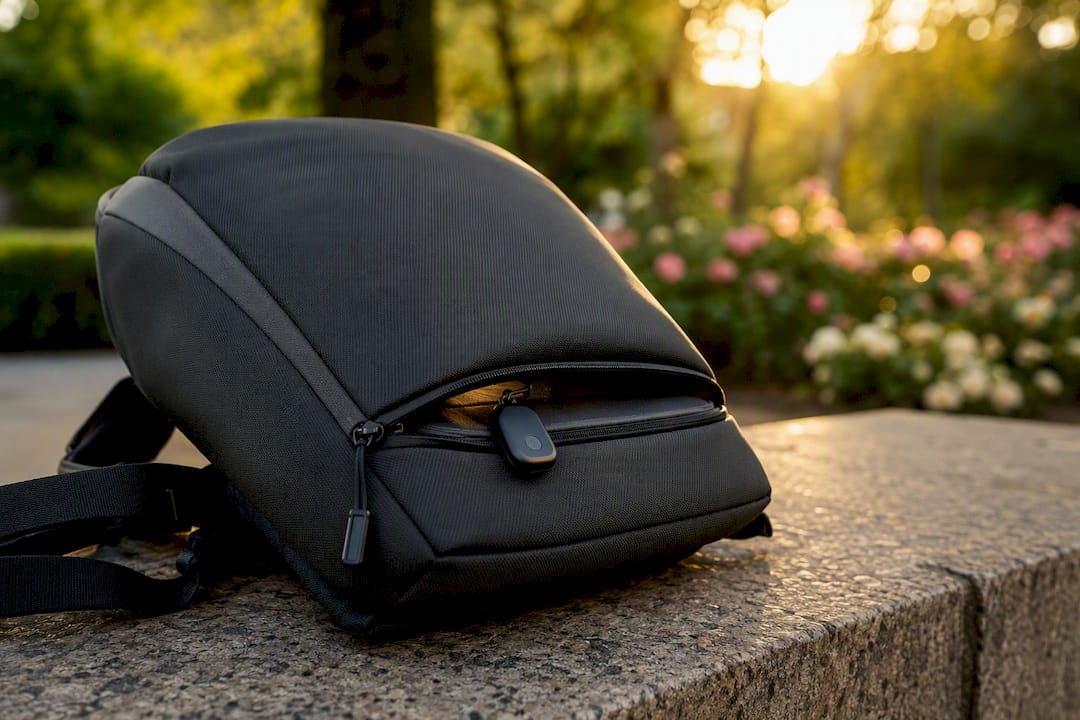
For your passport and other high-value documents, the general rule is to lock them in your accommodation’s safe on days you don’t need them for check-in or a border crossing, and to carry only what you actually need for that day. Carrying every valuable you own every single day multiplies your exposure for no real benefit.
The Overlooked Truth About Travel Work Setups
Most gear guides sell you a monitor and a mechanical keyboard before they mention watt-hours, and that ordering is backward. A dead power bank ends your workday in minutes. A missing second screen just makes it slightly less comfortable. The conventional advice on this topic treats every gadget as equally urgent, when in practice two categories, power and connectivity, are load-bearing and everything else is decoration.
The mock-workday test gets skipped constantly, and it’s the single highest-value habit in this entire guide. Spec sheets lie about real-world battery drain and hotspot speed under actual work conditions. An afternoon spent simulating a real day exposes weaknesses no product page will tell you about.
If you take one thing from this, prioritize getting power and connection right before you spend another dollar on comfort gear, and use resources like Nomadcareers’ visa and remote-job guides to validate the destination and the role before you validate the gear.